
Get started.
Sign up, fill in your company once, then put EventScope on your phone.
Sign up. It's free.
You get 60 days with every feature. No card needed. Picked a plan on the website? We remember it, and you pay only after the pilot.
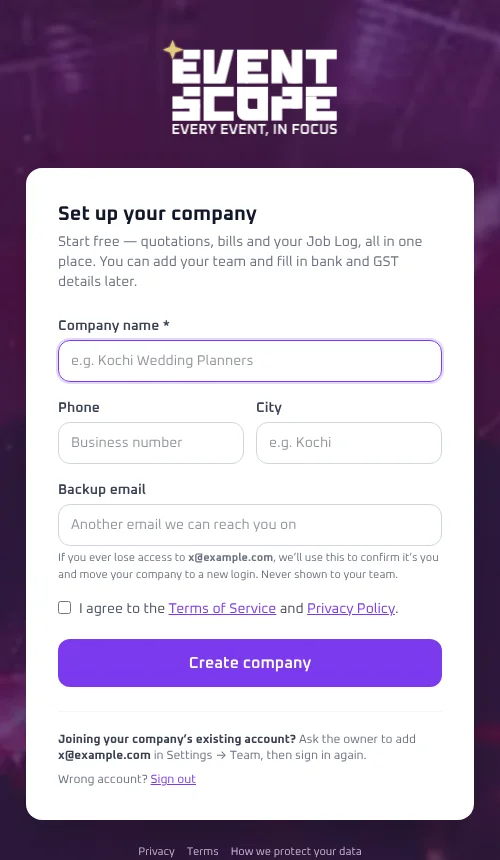
Set up your company.
Open Settings and fill each tab once. Your details then appear on every quote, bill and contract.
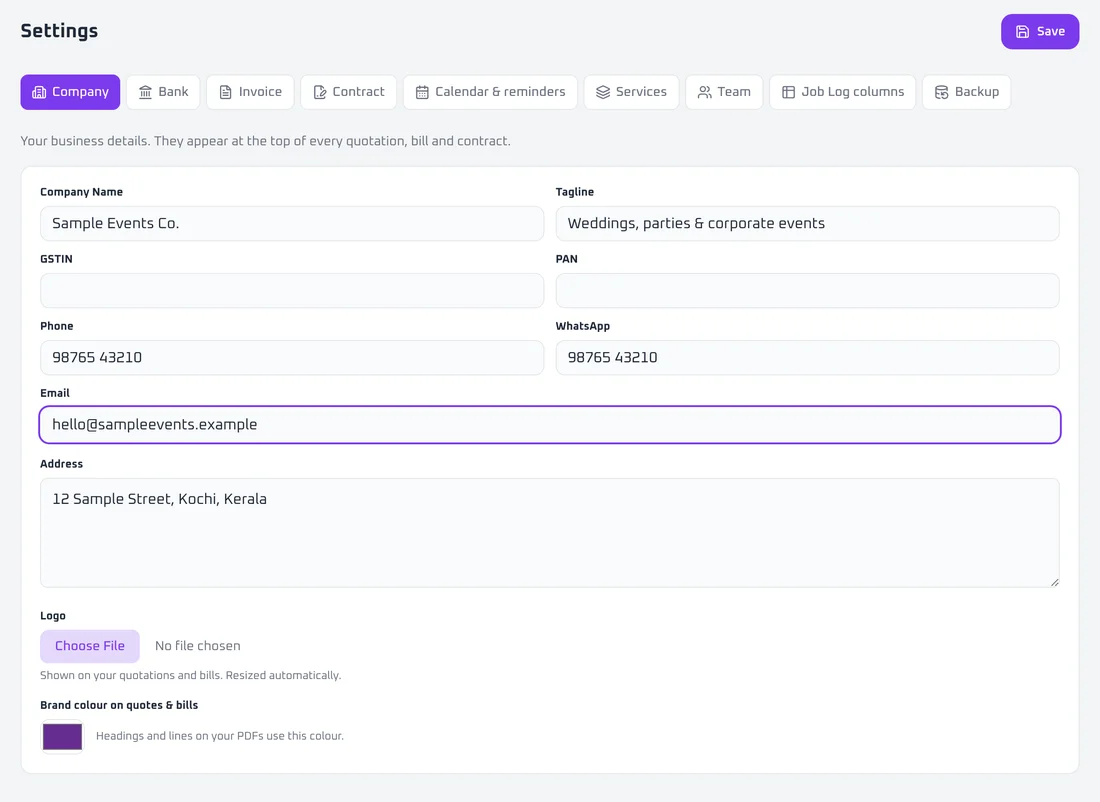
Company
Your name, phone, address and logo. They sit at the top of every quote, bill and contract.
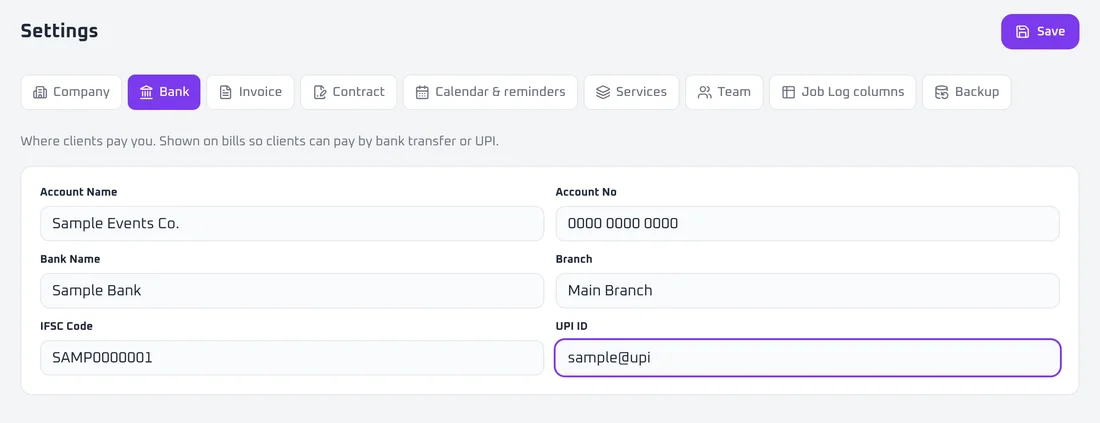
Bank
Where clients pay you. It is printed on your bills.
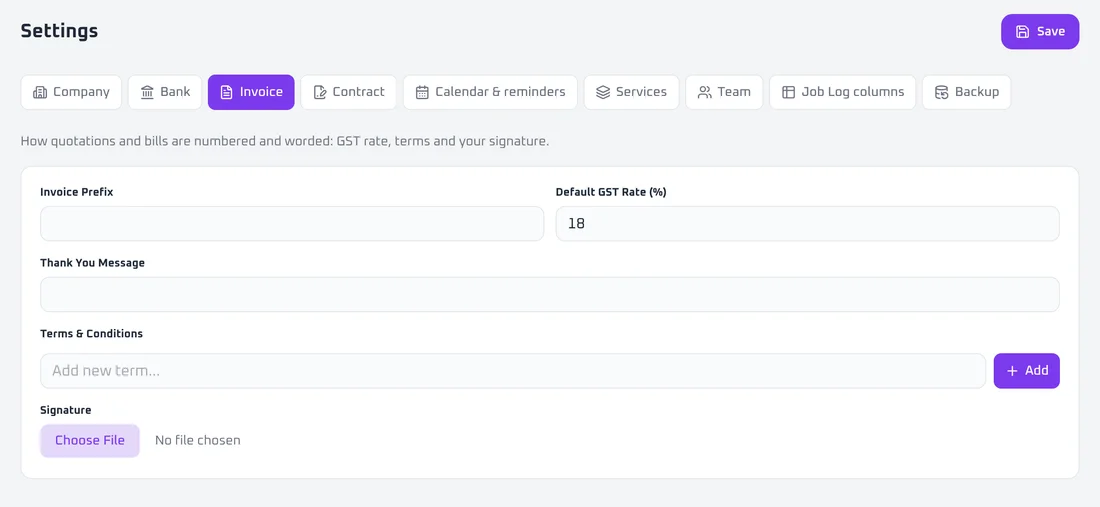
Invoice
Your GST rate, bill numbering and standard terms.
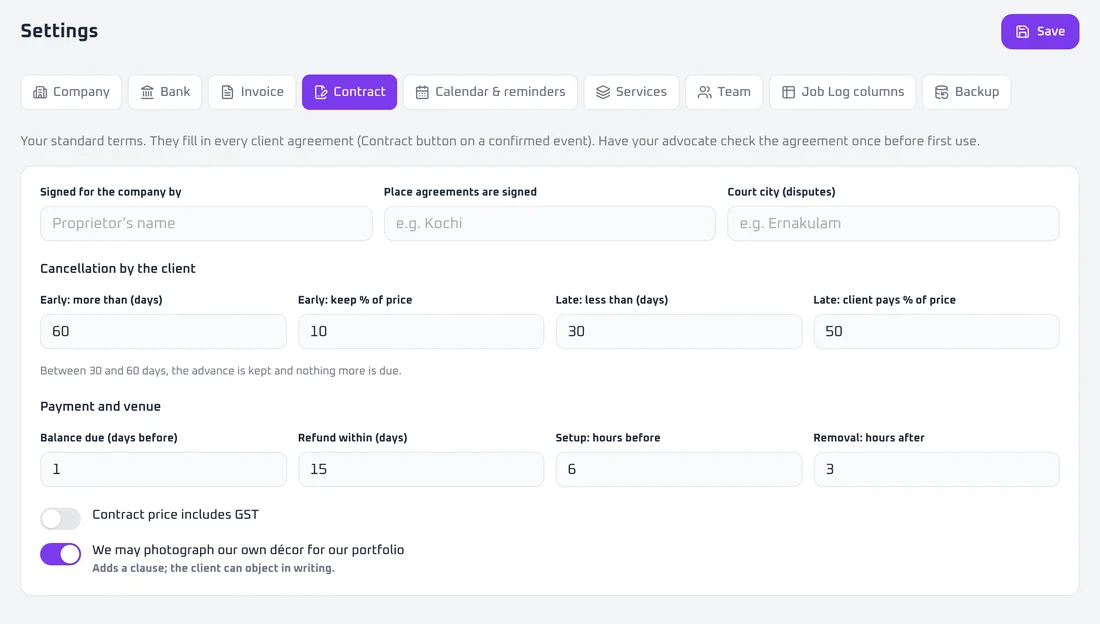
Contract
Your standard terms: cancellation and payment rules.
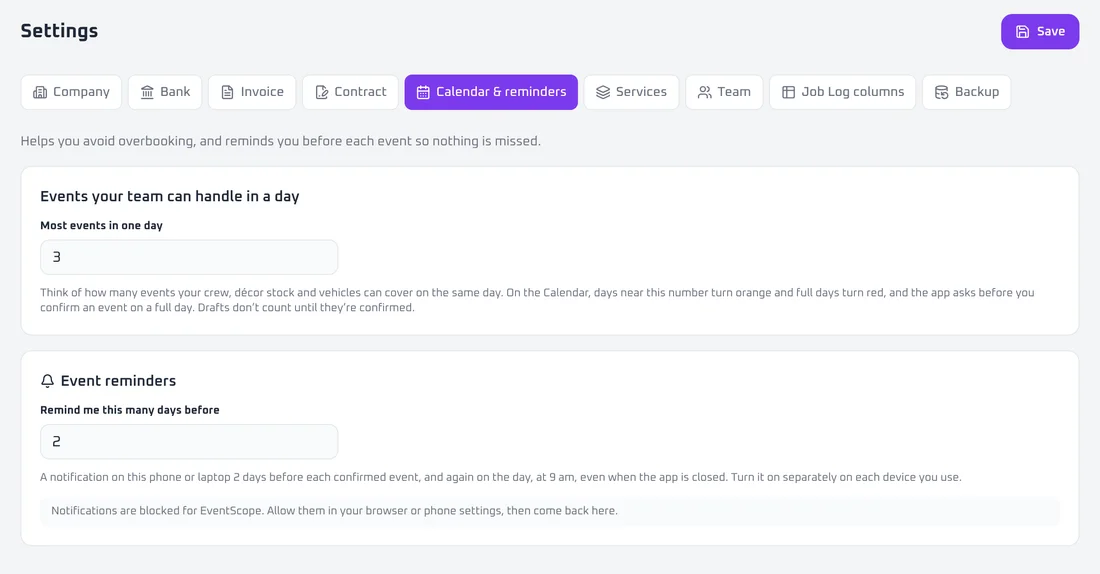
Calendar & reminders
The most events you can run in a day, and how early to be reminded.
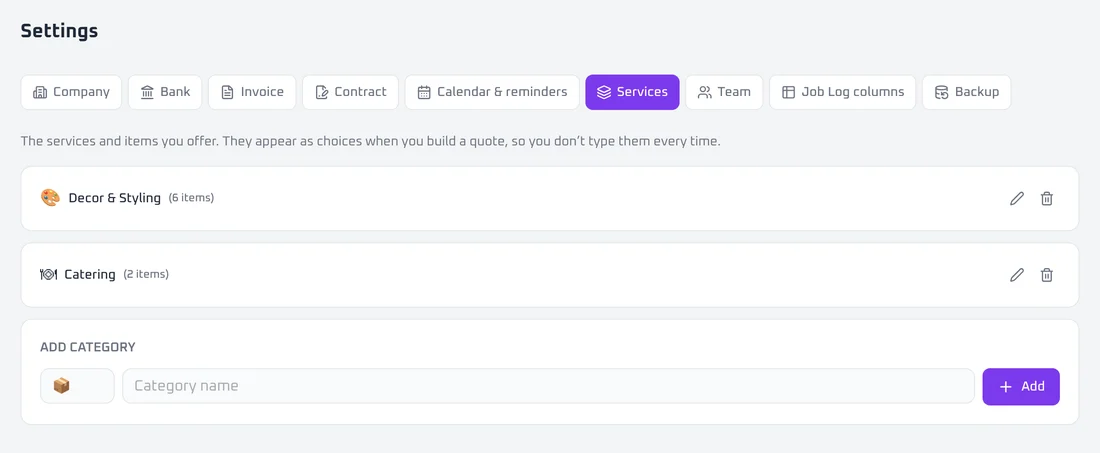
Services
Your price list. Pick from it when you build a quote.
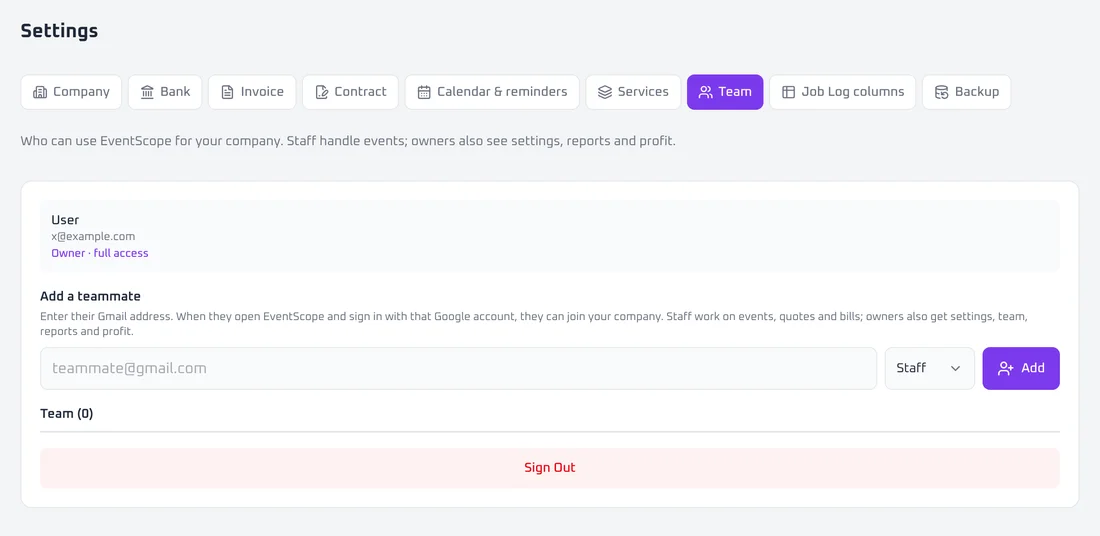
Team
Add teammates by their Gmail. Staff handle events. Owners also see reports and profit.
How to install on your phone.
No app store needed. Add EventScope to your home screen and it opens full-screen, like any app.
Install app →Opens the app. On Android it installs with one tap. On iPhone it shows the steps.
iPhone
Android
Sign in with Google the first time. For reminders, open Settings, then Calendar & reminders, and turn them on for that phone. On iPhone, add it to the home screen first.